Headless Virtualbox WEBUI
Back to the VMs
In a previous post I wrote about installing phpvirtualbox and I thought it’s worth its own post. So…
Going headless
VirtualBox’s headless mode is really powerful; you can do everything from the command line what you can do from the GUI but sometimes it just makes more sense to click a few times if you want to change some settings. Since I don’t have a display connected to my new server I looked around for a solution to this problem and found phpvirtualbox which seemed to be exactly what I needed.
Prerequisites
VirtualBox has a web service which we’ll need for phpvirtualbox, so let’s configure it. The official Oracle documentation was really useful for this, you can find it here. It’s for the 6.x version but everything worked for me on the 7.x version.
The following are meant for an Ubuntu 22.04 server.
Config file
We need to create a file named /etc/default/virtualbox and put the following in it at the bare minimum:
|
|
Starting the service
After that, the vboxwebsrv service must be started:
sudo systemctl start vboxweb-service.service
You can check the status of the service:
sudo systemctl status vboxweb-service.service
Running phpvirtualbox
I wanted to run this from docker as well, since installing PHP on the host for just this one thing seemed like an overkill so I went with this GitHub page for the VirtualBox 7.x support.
This is the docker-compose.yml file I ended up with (sensitive information omitted):
|
|
Now there are some caveats with the config on the GitHub page, for example leave out the " from the CONF_browserRestrictFolders environment variable, it breaks the file browser in the container. I store my VMs in the ‘/vm’ folder, it’s a separate volume but that’s just me.
I also left out the dockerized vboxwebsrv service because I just configured it on bare metal.
Conclusion
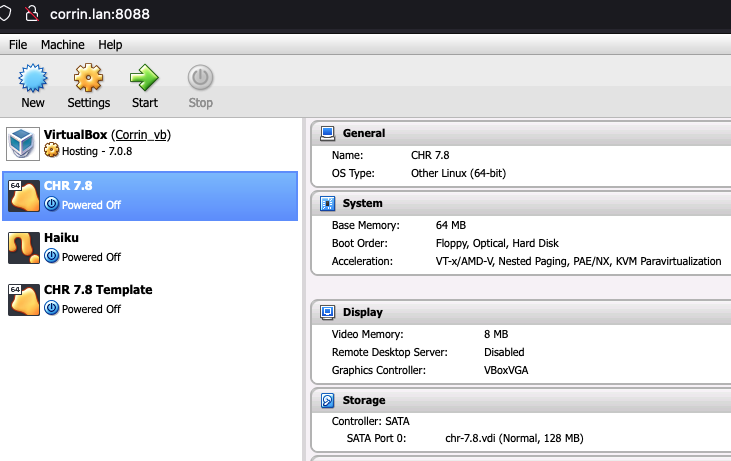
Everything is working, I can see my VMs just fine:
One more thing
Phpvirtualbox needs a Flash plugin to display the console of your VMs in a browser window which is just… yuck.
The solution is to use RDP. You can configure your VM’s Remote Display to accept RDP connections like so:
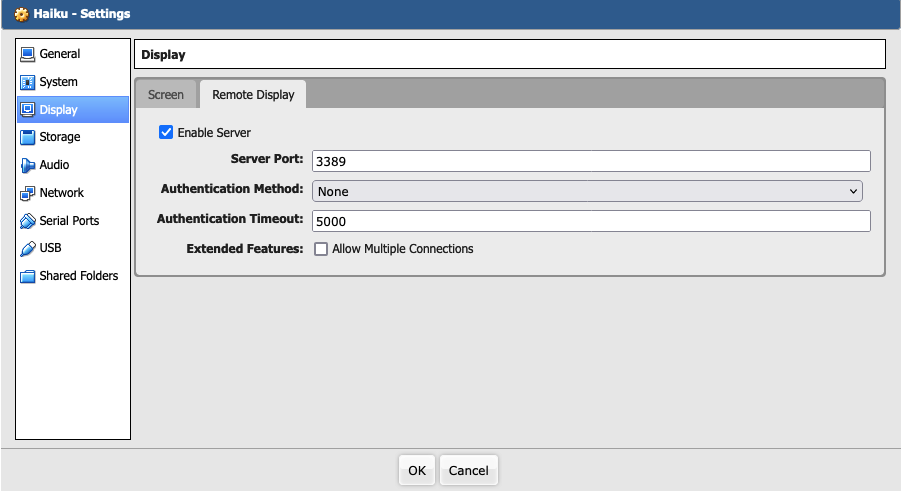
After you enable this just use any RDP client you’d like. On Mac, Microsoft Remote Desktop works for me (Yeah, I know. I use it for work, honest.)
One + one more thing
So, everything is working fine, let’s break something.
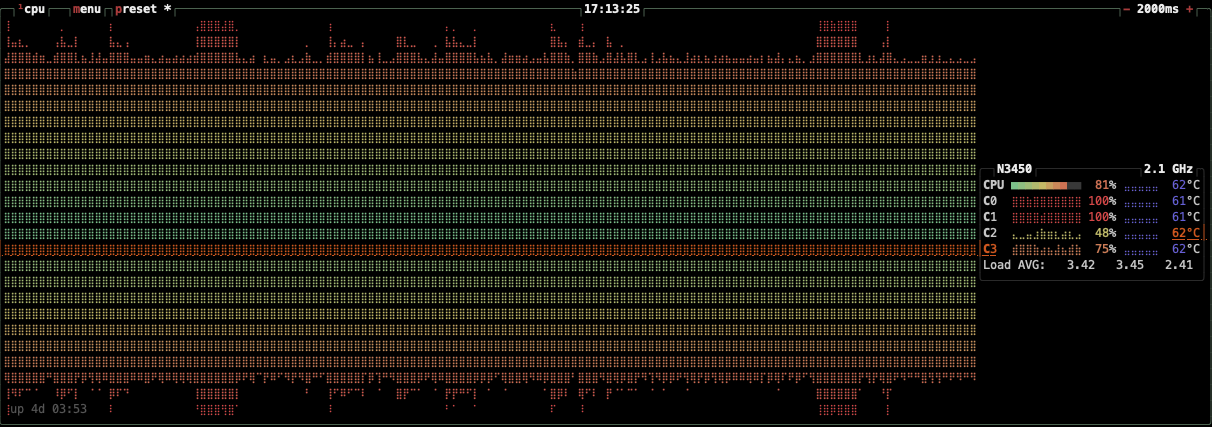
I started three VMs and put them under some stress: running a system update on all three at the same time using ansible. Let’s say that I did not finish the update, this was too much for my little server (this was with 50+ docker container already running, some of them are resource intensive themselves):